
Managing Expected Contracts
Main Article: Expected Contracts
Visit Expected Contracts to learn more about how to use Expected Contracts as a community or regional manager.
Administrators: Configuring Expected Contracts
Two critical setup tasks must be completed before expected contracts function effectively:
- Setting up your expected contract types
- Ensuring all your properties have community & regional managers set
Setting expected contract types
To set your expected contract types, Administrator users can head to https://app.pivott.io/settings/organization-settings to Edit the expected contract types.
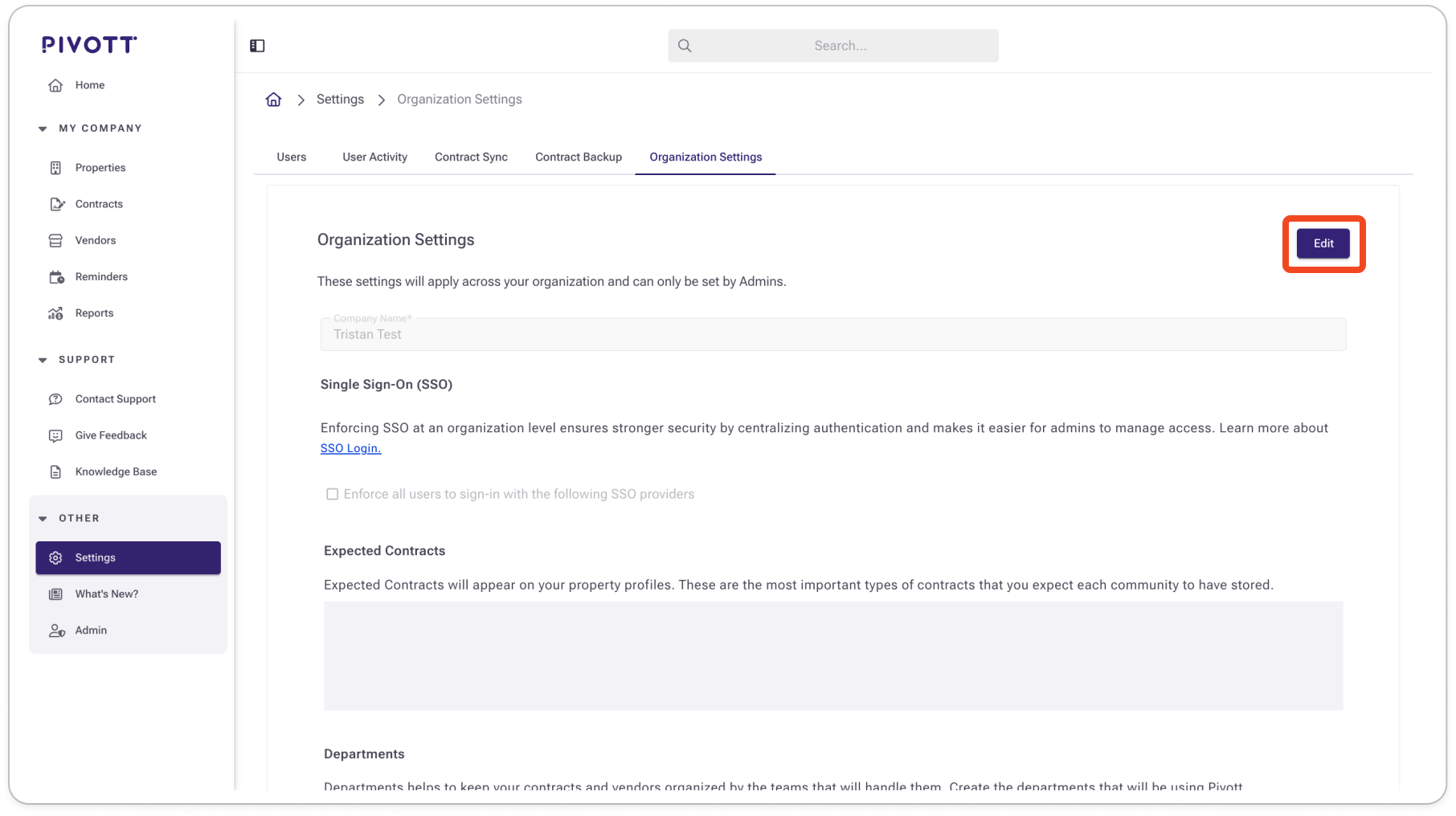
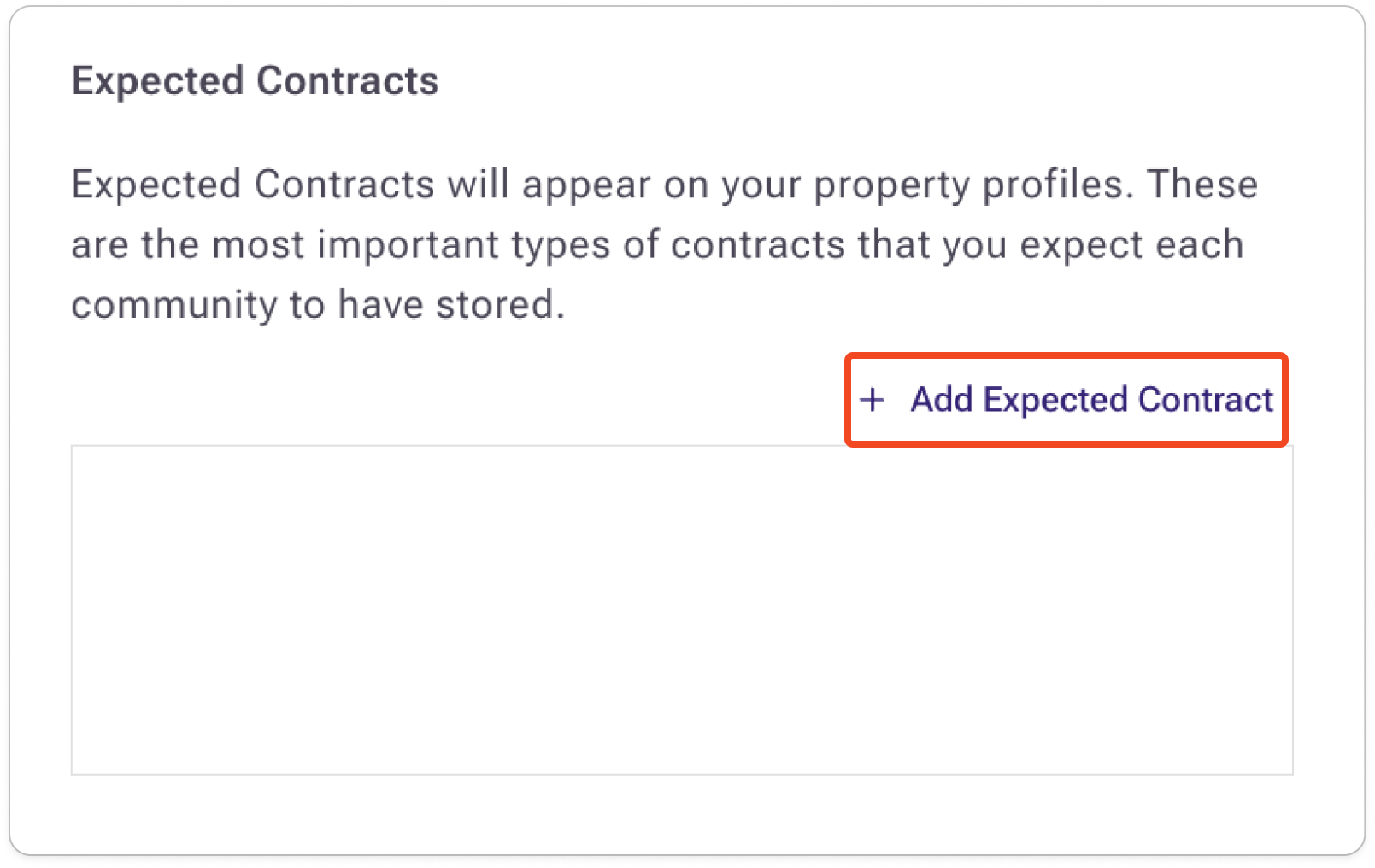
In the edit screen, find the Expected Contracts section and click Add Expected Contract.
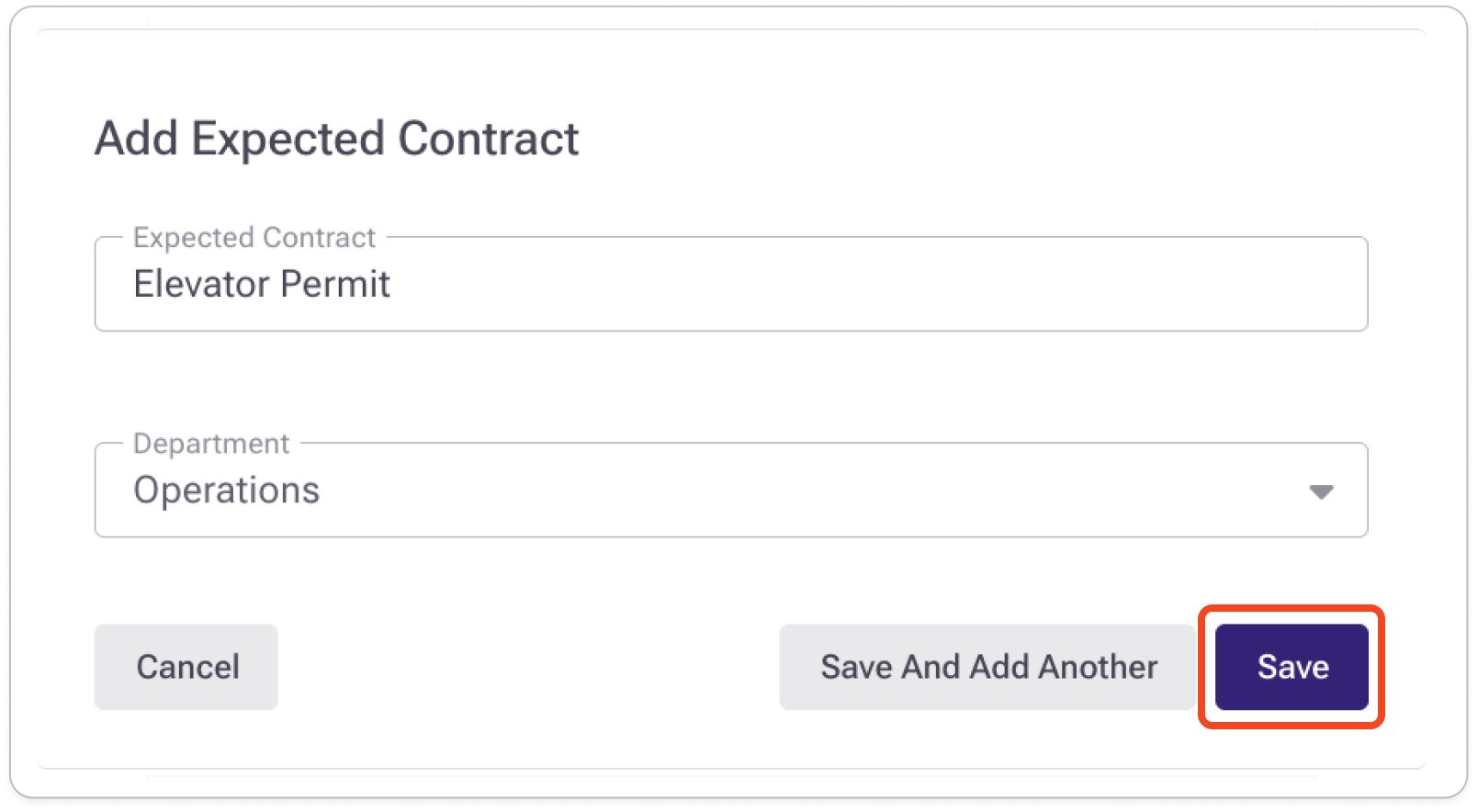
Here you'll give the expected contract type a name and optionally you can associate it with a department:
Click Save to see your new expected contract types added:
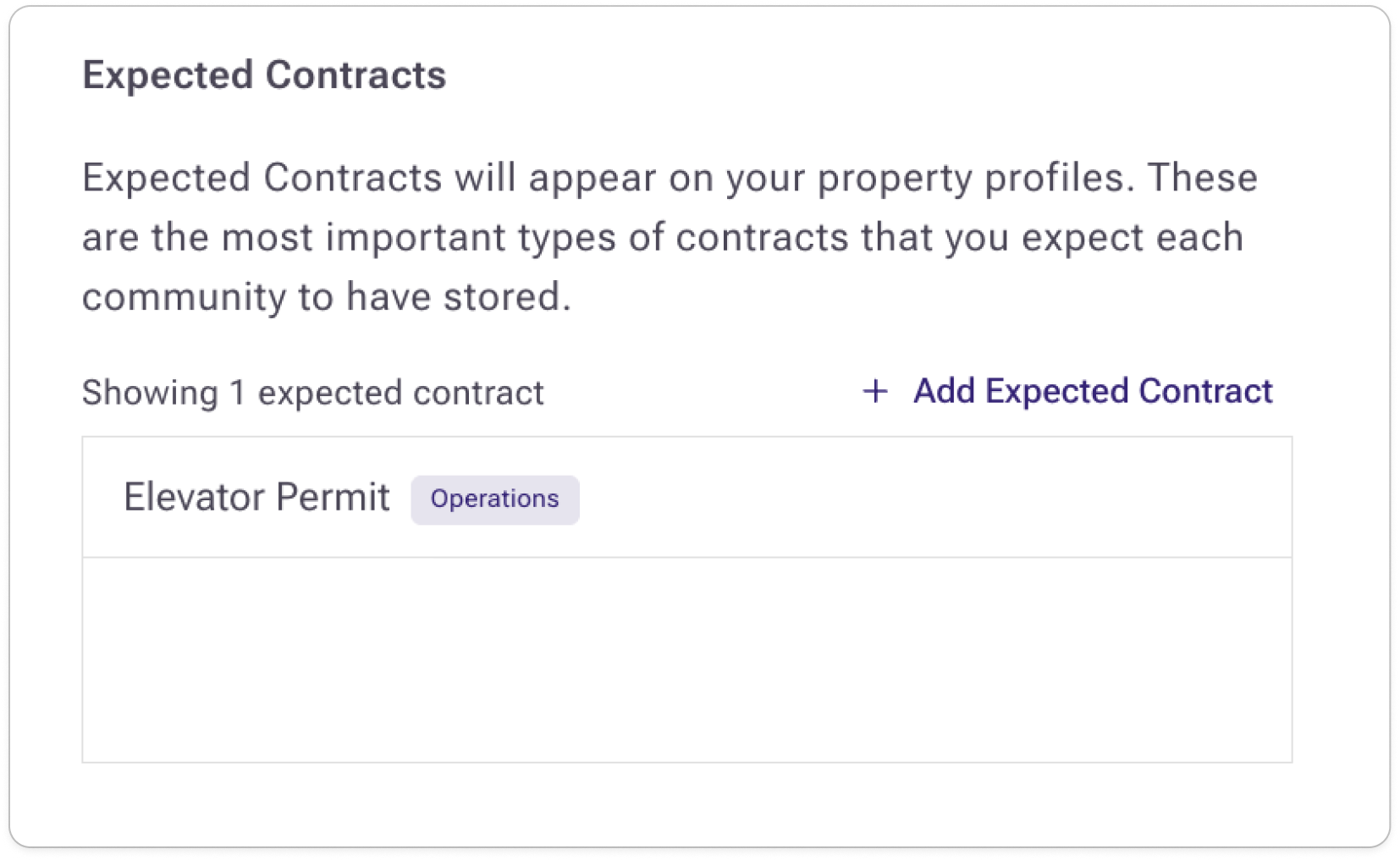
Any new types added will automatically show up on all your properties.
Setting community & regional managers
To ensure that the right people get notified about managing expected contracts, you'll want to ensure your team is added as community & regional managers on their appropriate properties.
To manage this, head to a property and find the ✏️Edit button:
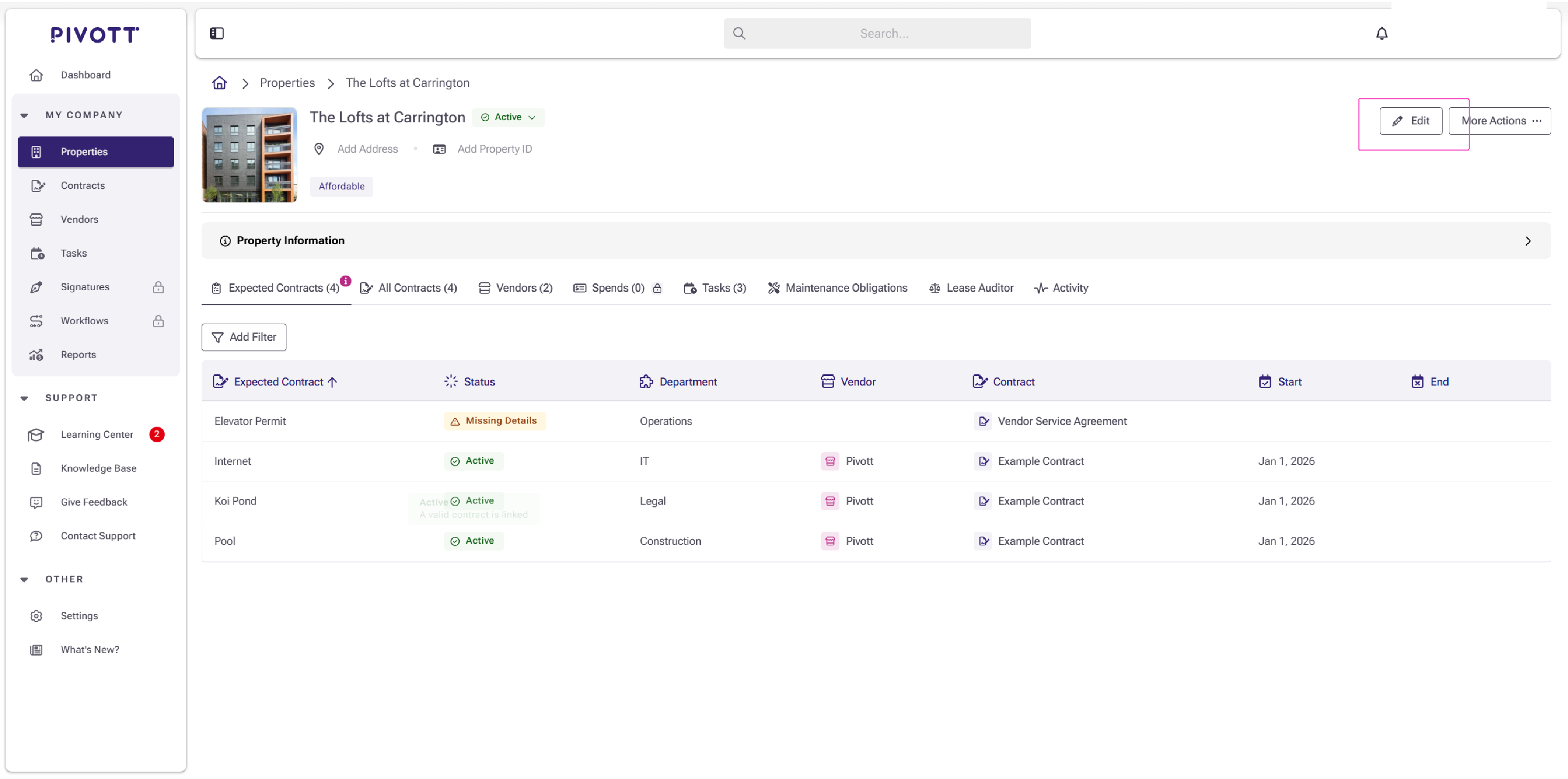
Under the Managers section, you'll see two fields:
- Community Manager(s)
- Regional Manager(s)
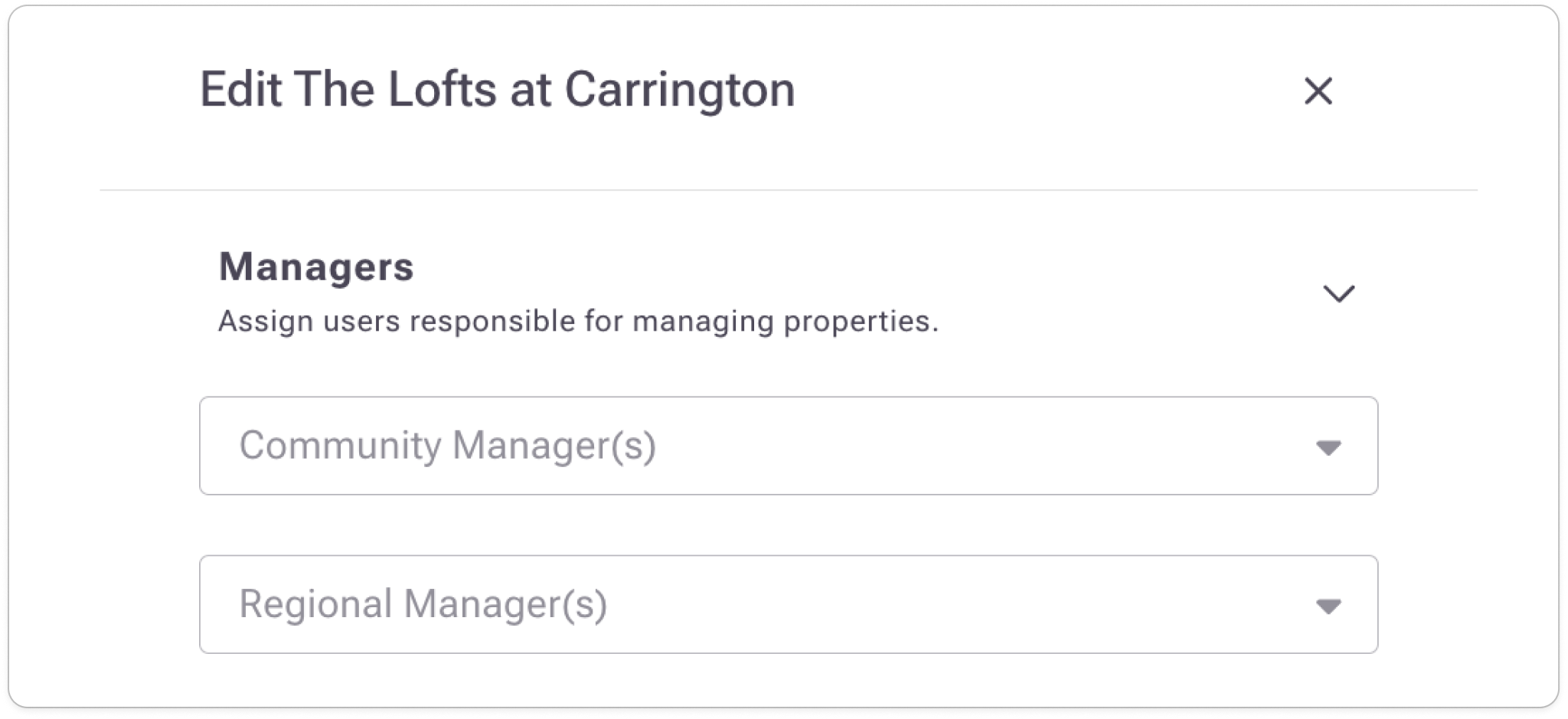
Choose from a list of existing Pivott users to add them to the property. Hit Save when you're done.
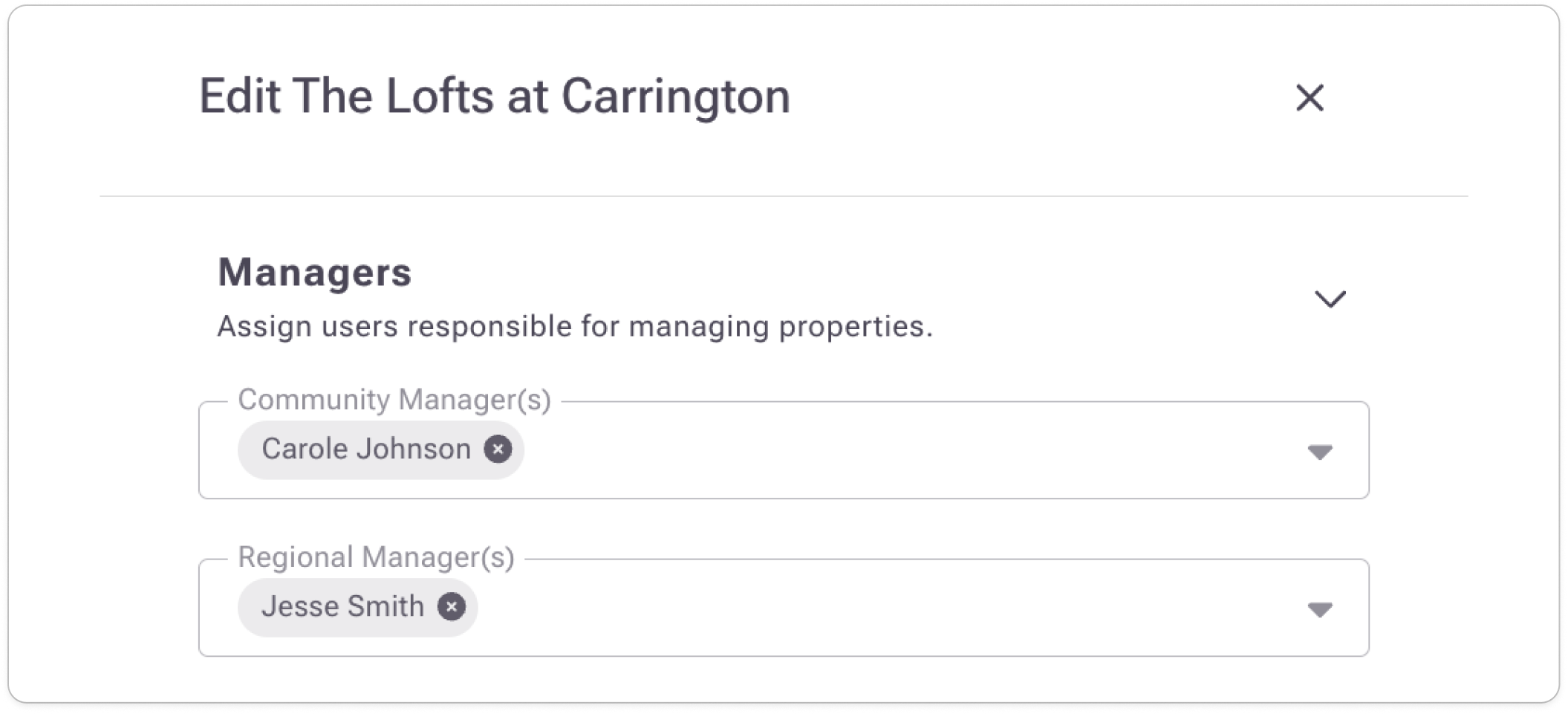
Congrats! These users will now be notified when expected contract types are missing or expiring.
Troubleshooting
I deleted an expected contract category — did that delete all linked contracts too?
No, deleting a category does not delete contract files.
I have View + Add users, can they link expected contracts?
Yes, View + Add users can still link contracts even if they can't edit the contract details.