
For IT Admins: Microsoft 365 SSO Consent Requests
In this article
What it looks like when approval is required before using SSO
What it looks like when approval is required before using SSO
Some organizations using Microsoft 365 may require their users to request approval from their IT administrators first before accessing an application with single sign-on.
Here’s what it looks like when a user runs into an approval request:
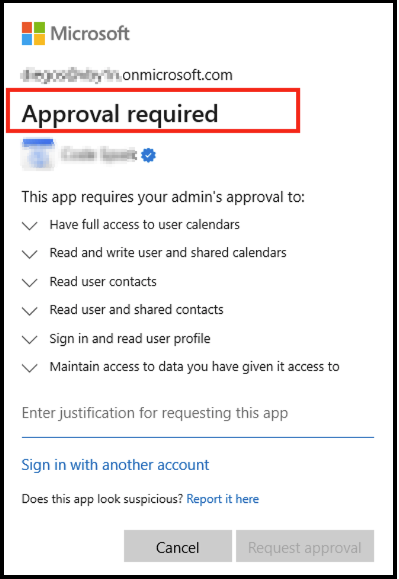
Users will need to fill in the justification section and click Request Approval so their IT administrator can take action on the request.
Reviewing admin consent requests and taking action
To review the admin consent requests and take action:
- Sign in to your Microsoft Entra admin center.
- Browse to Identity > Applications > Enterprise applications.
- Under Activity, select Admin consent requests.
- Select My Pending tab to view and act on the pending requests.
- Select the application that is being requested from the list (in this case, Pivott).
- Review and approve the request as appropriate.

Troubleshooting
For more info, see: Review and take action on admin consent requests - Microsoft Entra ID