
Your Pivott Dashboard
In this section
The Pivott Dashboard is your home base — a single, at-a-glance view of everything that needs your attention and everything happening across your portfolio. When you log in, the dashboard is the first thing you see, giving you a clear picture of your day without having to navigate through multiple sections of the app.
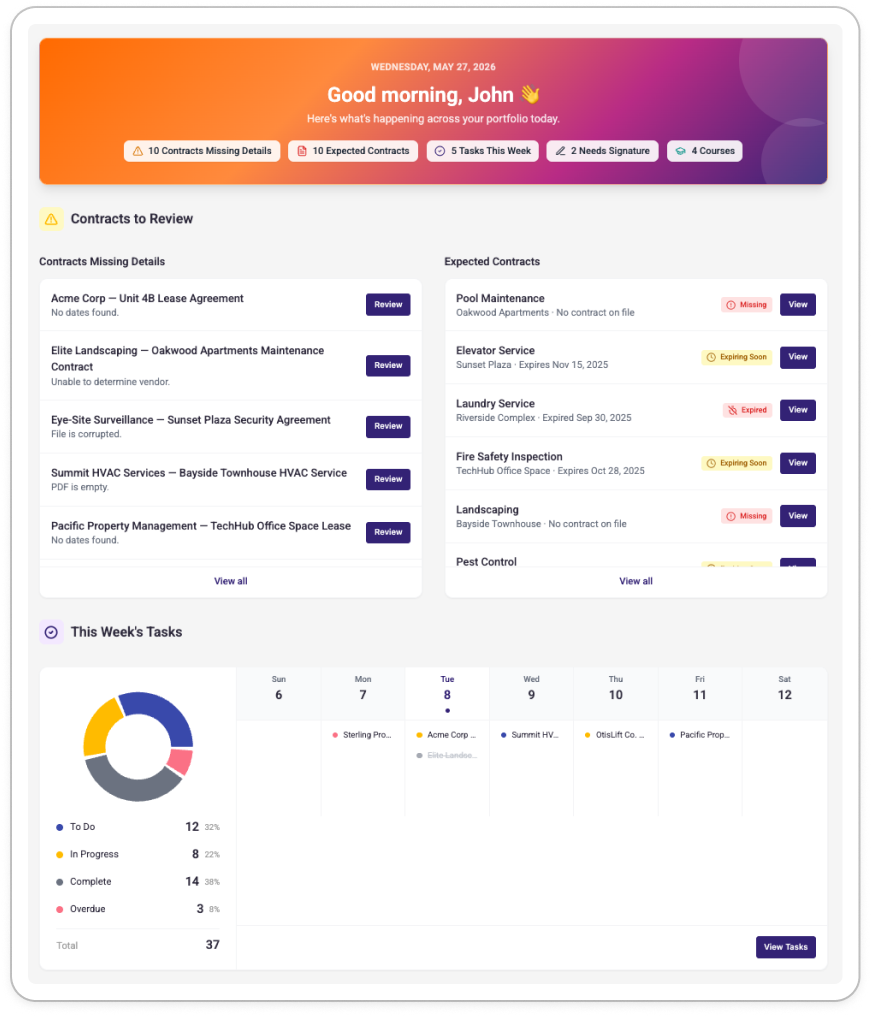
Who is the dashboard for?
The dashboard is available to all Pivott users and is especially useful for Community Managers and Regional Managers who need a daily snapshot of contract status, upcoming tasks, and portfolio health.
Some sections are only visible to users with specific add-on entitlements (like Signatures+), and what you see within each section is always filtered to the data you have permission to access — so you'll never see contracts or tasks that aren't yours to manage.
Dashboard sections & widgets
Banner
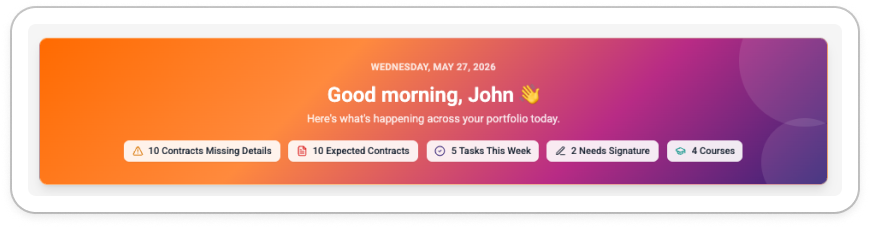
At the top of the dashboard is a full-width banner that greets you by name and shows today's date. The greeting and background gradient change based on the time of day.
Below the greeting, you'll see a row of summary chips — small counters that show how many items need your attention across key sections. A chip only appears when its count is greater than zero. The chips correspond to the following sections:
| Chip | What it counts |
|---|---|
| Contracts Missing Details | Contracts where AI extraction needs your review |
| Expected Contracts | Expected contracts with Missing or Expired status |
| Tasks This Week | Open tasks (To Do, In Progress, or Overdue) for the current week |
| Needs Signature | Signature documents where your signature is currently outstanding |
| Courses | Incomplete learning courses assigned to you |
Clicking a chip scrolls directly to that section and briefly highlights it so you can find it quickly.
Contracts to Review
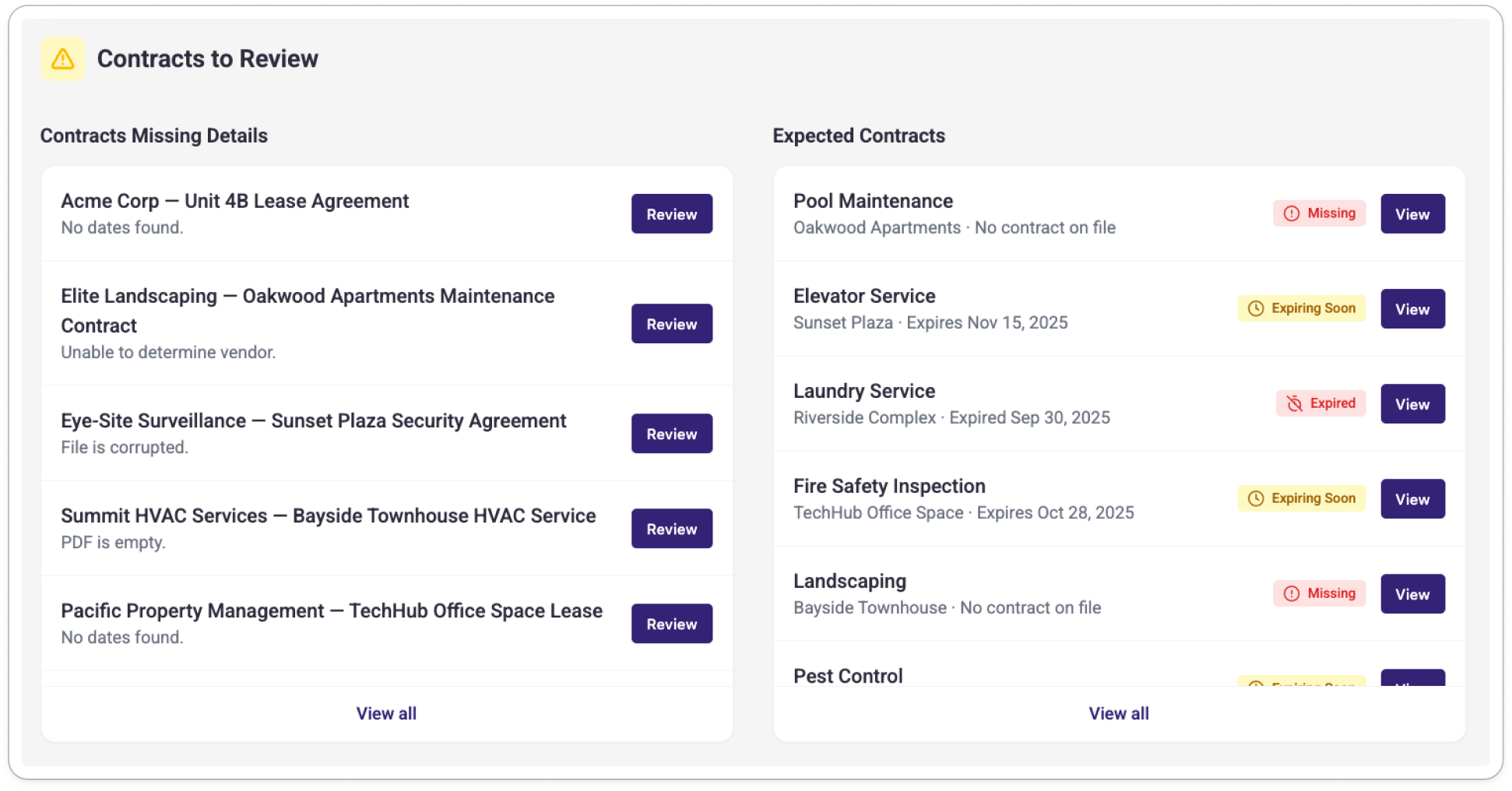
This section contains two side-by-side panels focused on contracts that need action.
Contracts Missing Details
When Pivott's AI processes a contract upload, it occasionally can't extract all of the required information. Any contracts with a Missing Details status appear here so you can review them and fill in what's needed. Each row shows the vendor name, contract name, and the specific reason for the flag. Clicking Review takes you directly to that contract's profile.
Up to 25 contracts are shown at a time. If there are more, a View all link takes you to the Contracts page with the Missing Details filter pre-applied.
Expected Contracts (requires Expected Contracts entitlement)
If your organization uses Expected Contracts, this panel surfaces any expected contracts that are Missing or Expired across the properties you manage. Items are listed alphabetically by property name, and each row shows the contract type, property name, expected status, and relevant dates.
You can drag and drop a contract file directly onto a row to upload it and kick off processing — Pivott will automatically associate it with the correct property and expected contract category.
Up to 15 items are shown. A View all link is available if there are more.
This Week's Tasks
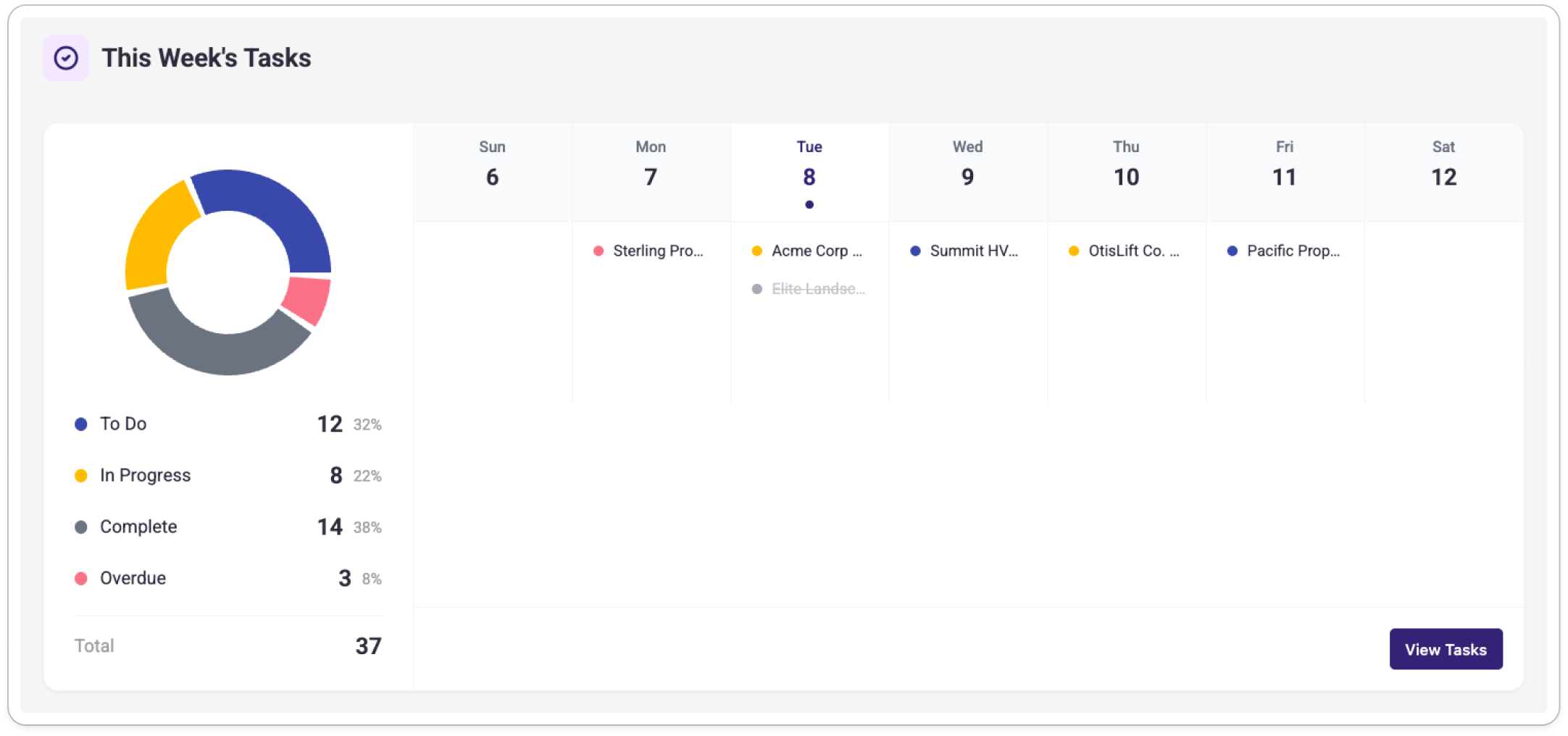
This section gives you a full picture of your task workload for the current week in two panels.
Task Summary (left panel)
A donut chart breaks down the week's tasks by status: To Do, In Progress, Complete, and Overdue. Each status row shows the count and percentage of your total tasks for the week. Archived tasks are excluded from this count.
Weekly Calendar (right panel)
A 7-day calendar grid runs from Sunday to Saturday, with today's column highlighted. Your tasks appear under their scheduled day as coloured dots with truncated labels. Hovering over a task shows its full details in a tooltip. Clicking any task navigates you to the Tasks page in the context of that task's associated contract, vendor, or property.
A View Tasks button at the top of the section links to the full Tasks page.
If you have no outstanding tasks this week, the section displays a celebration empty state — all caught up!
Your Contracts at a Glance
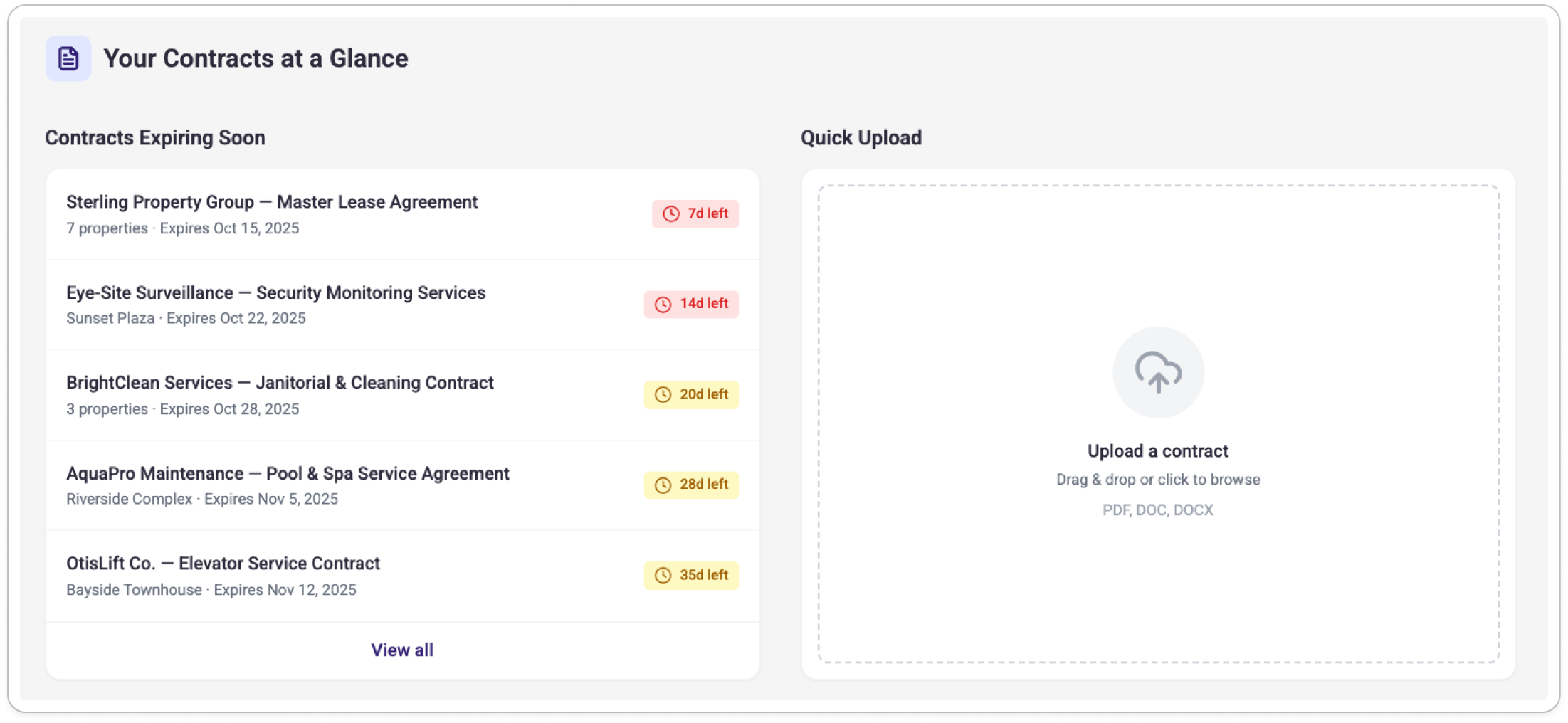
This section contains two side-by-side panels related to your broader contract portfolio.
Contracts Expiring Soon
A rolling 30-day look-ahead showing contracts with upcoming expiry dates that don't already have a task in progress. Each item shows the vendor name, contract name, property, expiry date, and a colour-coded days remaining tag:
- Red (danger): 14 days or fewer
- Amber (warning): more than 14 days
Clicking any row navigates directly to that contract's profile. Up to 15 items are shown, with a View all link if there are more.
Quick Upload
A drag-and-drop upload zone that lets you submit a contract for AI processing without leaving the dashboard. You can also click the zone to browse for a file. During upload, a loading indicator appears across the page. On success, a confirmation state displays briefly before the zone resets. If something goes wrong, an inline error message appears and you can try again.
Signatures+ (requires Signatures+ entitlement)
If your organization has Signatures+ enabled and your role allows you to create or manage signature sends, this section shows all signature documents that were either sent by you or require your signature.
Items are listed with Sign Now documents at the top (those require your immediate attention), followed by all others sorted by sent date. Each row shows the document name, sender, sent date, last updated date, and a status tag. Supported statuses are: Sign Now, Sent, Revoked, Declined, Draft, and Expired.
When a document shows a Sign Now status and your signature is outstanding, a Sign Now button will appear directly on the row. Clicking it opens a full-screen signing overlay so you can complete your signature without leaving the dashboard. See Managing Documents for Signature for more details on the in-app signing experience.

Clicking View on any other row opens the document in Signatures+. Up to 25 items are shown, with a View all link to the Signatures+ History tab if there are more.
Learning Center
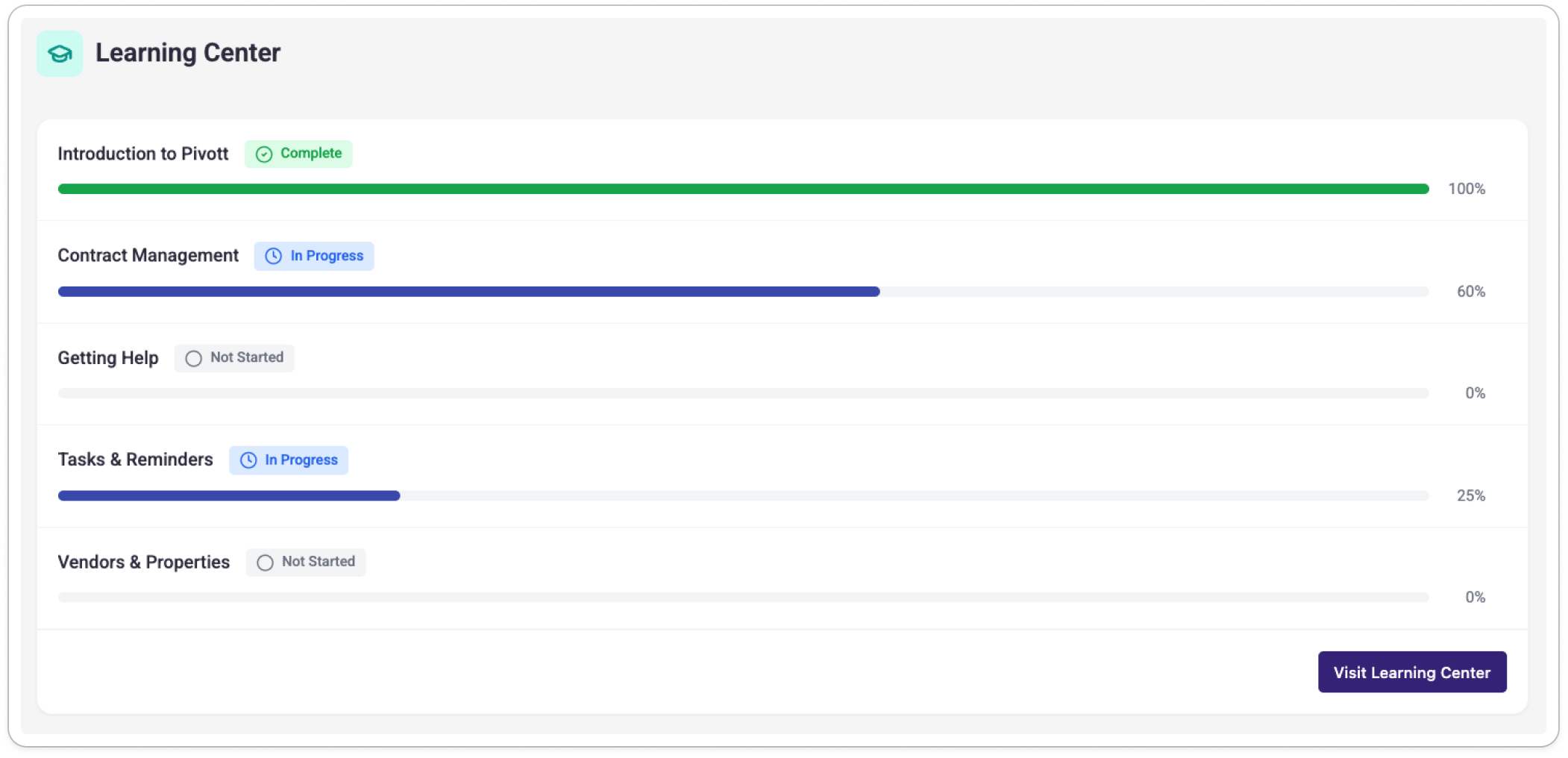
If your organization uses Pivott's Learning Center and you have courses assigned to you, this section shows your progress at a glance. Each course displays the title, status (Not Started, In Progress, or Complete), a progress bar, and your completion percentage.
A Visit Learning Center button links to the full Learning Center page.
This section disappears automatically once you've completed all of your assigned courses.
Pivott Updates
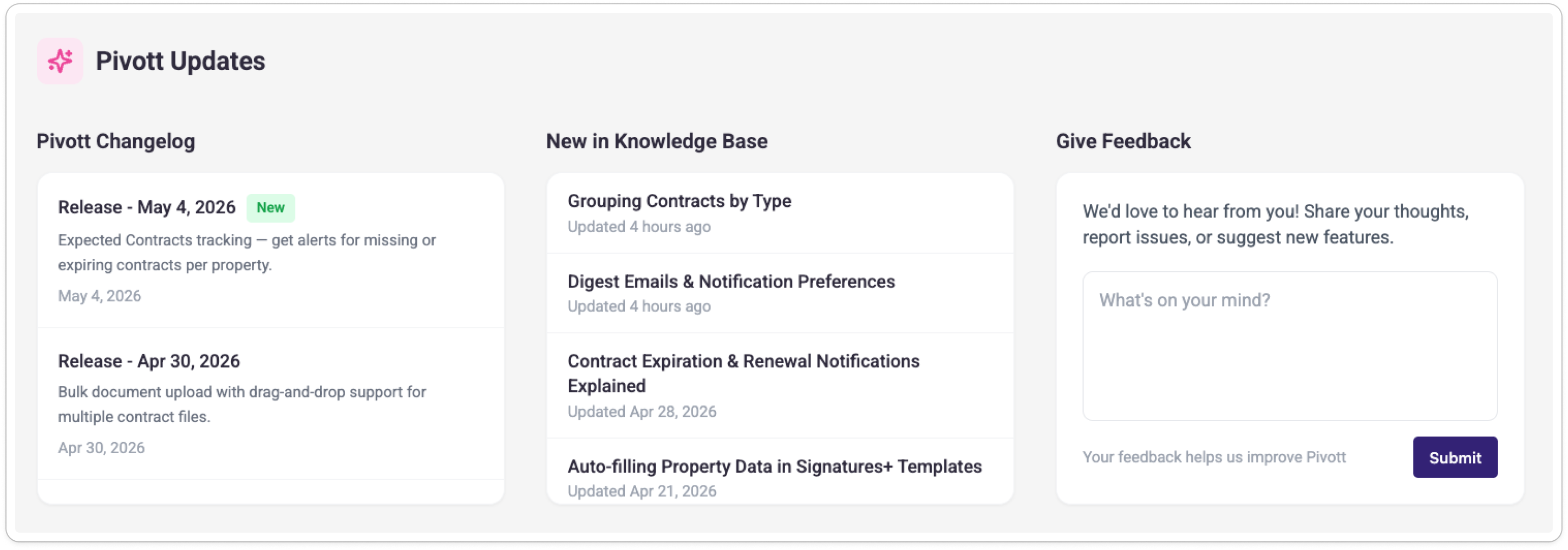
This section keeps you informed with three smaller panels.
Pivott Changelog
The latest product release notes from Pivott, pulled directly from the changelog. The most recent entry is tagged New. Scroll the list to see earlier releases.
New in Knowledge Base
The 10 most recently updated articles from the Pivott Help Centre (this site!), ordered by most recently updated. A quick way to catch documentation changes or newly added guides.
Give Feedback
A free-text box for sharing thoughts, reporting a bug, or suggesting a feature. Your submission goes directly to the Pivott Support inbox. After you submit, the form resets and displays a brief confirmation.
How to customize your view
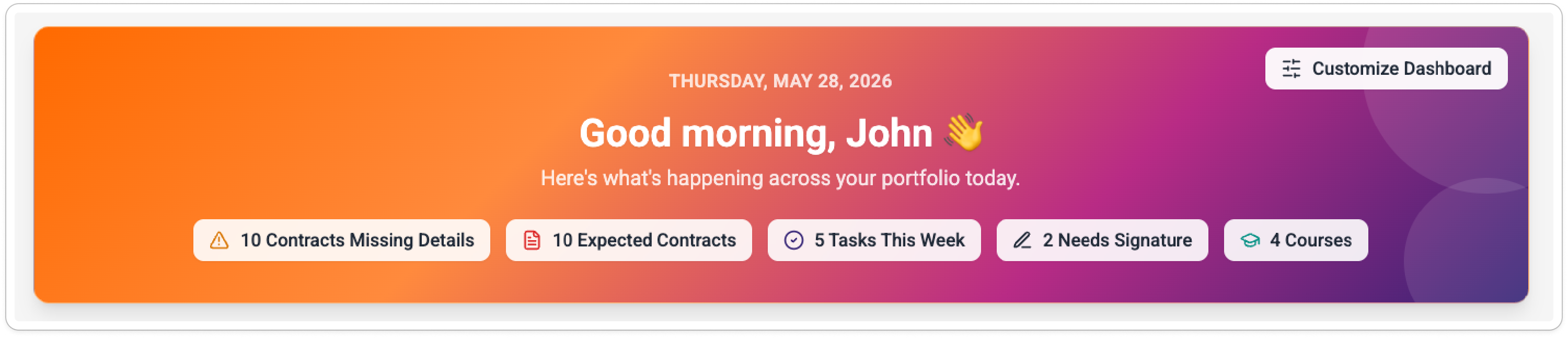
You can show or hide any dashboard section to keep your view focused on what matters most to you.
To open the Customize Dashboard panel:
- Hover over the hero banner at the top of the dashboard.
- Click the Customize Dashboard button that appears.
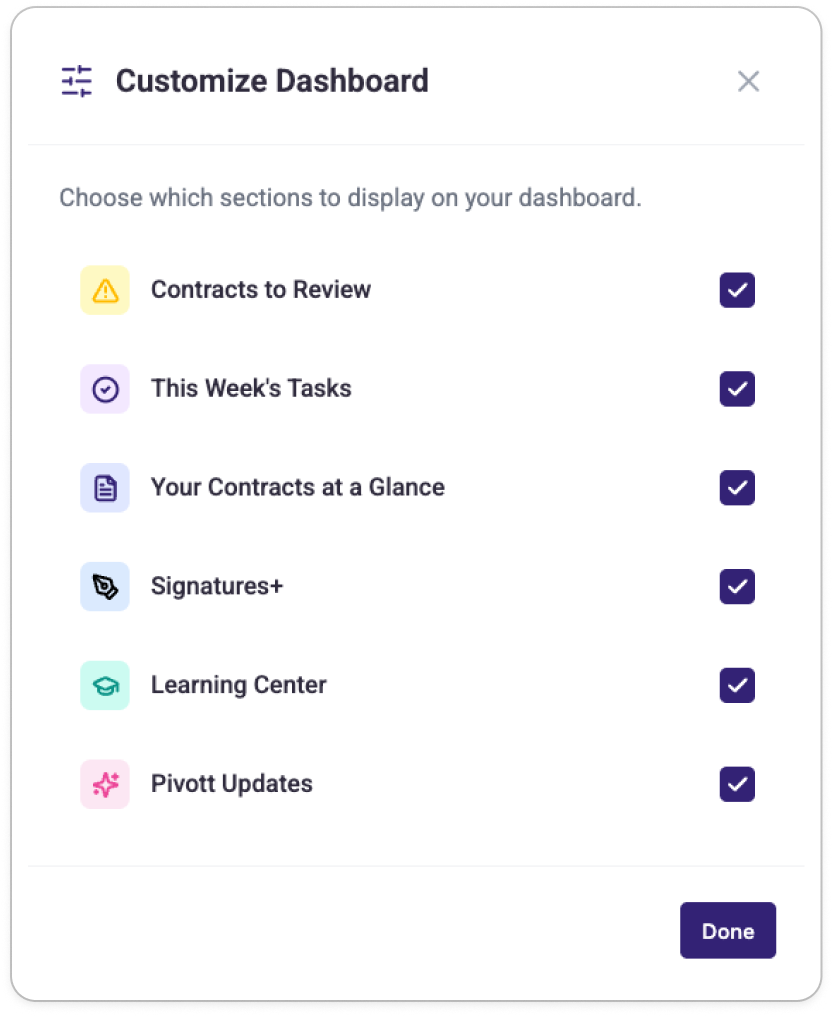
A modal will open listing all sections:
- Contracts to Review
- Your Contracts at a Glance
- This Week's Tasks
- Signatures+ (only visible if your organization has this entitlement)
- Learning Center
- Product Updates
Toggle any section off to hide it immediately. Toggle it back on to restore it. Your preferences are saved to your account and will persist the next time you log in.
Note: Sections you don't have access to based on your entitlements won't appear in the Customize Dashboard modal at all — they're not just greyed out, they're hidden entirely.
Questions & troubleshooting
I don't see the dashboard when I log in. Why?
The dashboard is enabled per organization. If you're landing on the Properties page instead, your organization may not have the dashboard turned on yet. Contact your Pivott administrator or reach out to Pivott Support to learn more.
One of my sections isn't loading.
Each section loads independently, so a problem in one won't affect the others. If a section shows an error or spinner that doesn't resolve, try refreshing the page. If the issue persists, use the Give Feedback widget or contact Pivott Support.
I can't see the Signatures+ or Expected Contracts section.
These sections are available only to organizations with the corresponding entitlements enabled. If you believe you should have access, contact your Pivott administrator.
The summary chips in the banner don't match what I see in a section.
The chip counts reflect your full unfiltered totals and are refreshed each time you load the dashboard — they don't use cached data. The lists within each section are capped (e.g. Contracts Missing Details shows up to 25 items), so the chip count may be higher than the number of rows visible. Use the View all link in any section to see the complete list.
I uploaded a contract using Quick Upload but nothing happened.
If the upload failed, an error message should appear inline in the upload zone. Check that your file is a supported format (PDF) and within the size limit. If the upload appeared to succeed but you can't find the contract, navigate to the Contracts page — it may still be processing. If the issue continues, contact Pivott Support.
My task count on the banner doesn't include all of my tasks.
The Tasks This Week chip counts only tasks for the current calendar week (Sunday to Saturday) with a status of To Do, In Progress, or Overdue. Completed and Archived tasks and tasks from other weeks are excluded by design.
I completed all my Learning Center courses but the section is still showing.
Try refreshing the page. The Learning Center section hides automatically once all assigned courses are complete, and the updated state should load on your next dashboard visit.
I can see a Sign Now button in the Signatures+ section but clicking it shows an error.
This is usually caused by a temporary network issue. Close the overlay and try again. If the problem persists, use the signing link from your original email notification instead, or contact Pivott Support.