
Managing Vendors
In this article
Accessing Vendors
- Select Vendors under My Company.

Adding a Vendor
You can quickly add Vendors when adding new Contracts. To learn more, see Adding Contracts
- Click Add Vendor.
- Enter the vendor name in the Vendor field. As you type, Pivott will show suggestions from the Vendor Directory.
- If you see the correct Vendor, click their name and Pivott will auto-complete the fields.

- If the vendor is not listed, enter the details in the fields provided.
- Select a Department.
- Optionally, add a Legal Name, Third Party ID, Contract Owner(s), Labels, or Notes to improve future searches.
- Click Save Vendor.

Editing a Vendor
- From the Vendors page, locate the vendor you want to edit and click the edit icon.
- Make your changes and click Save Vendor.

Viewing Vendor Details
- From the Vendors page, click the Vendor you'd like to view.
- You'll see information about the Vendor, like associated department, contact information, etc.
- You can also view associated Contracts, Properties, Tasks, Compliance, Products & Services, and Reviews. Click the relevant tab to view associations, and click on each item for more details.

Viewing Vendor Reviews
- From the Vendors page, click the Vendor you'd like to view.
- Click the Reviews tab.
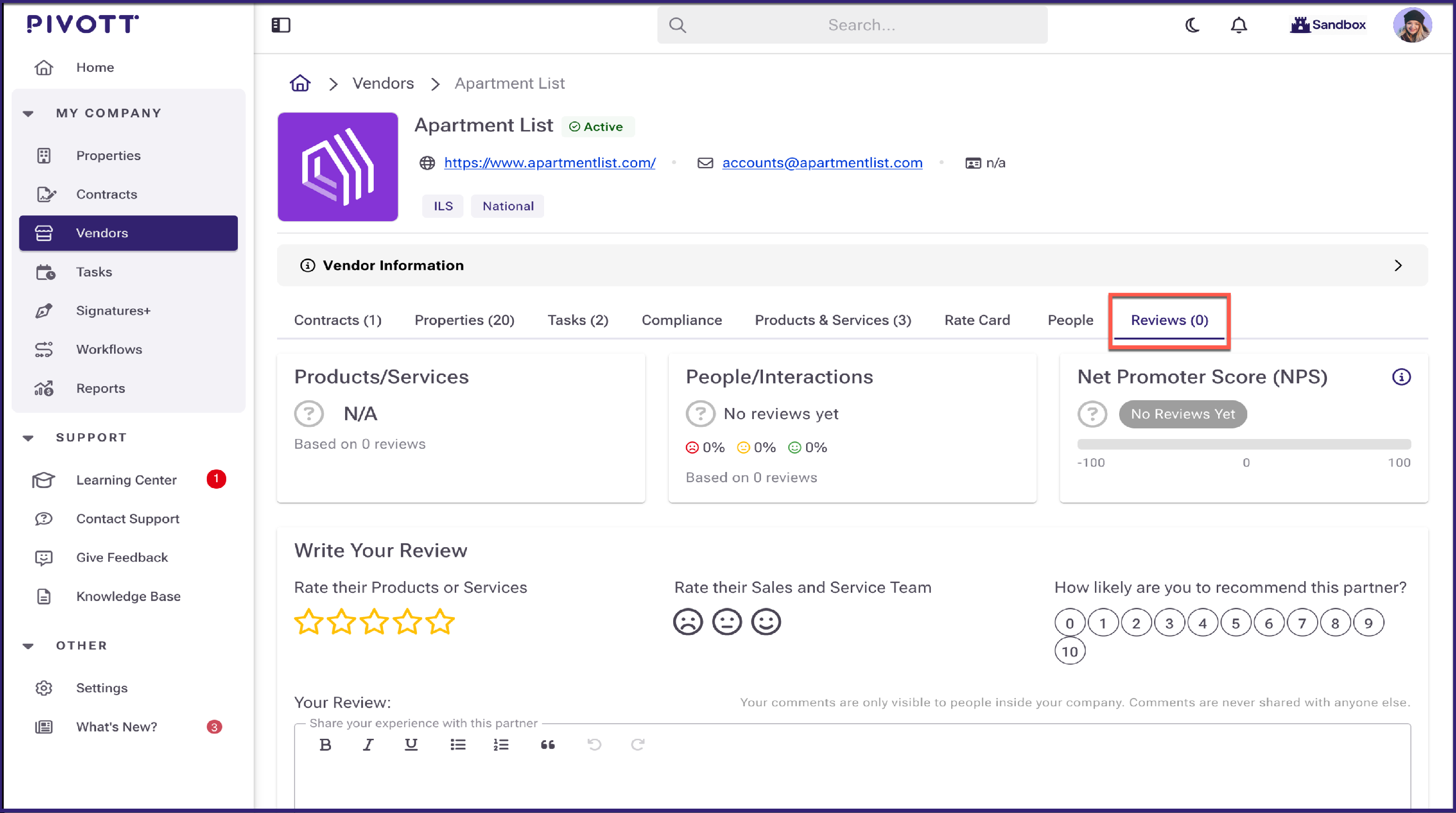
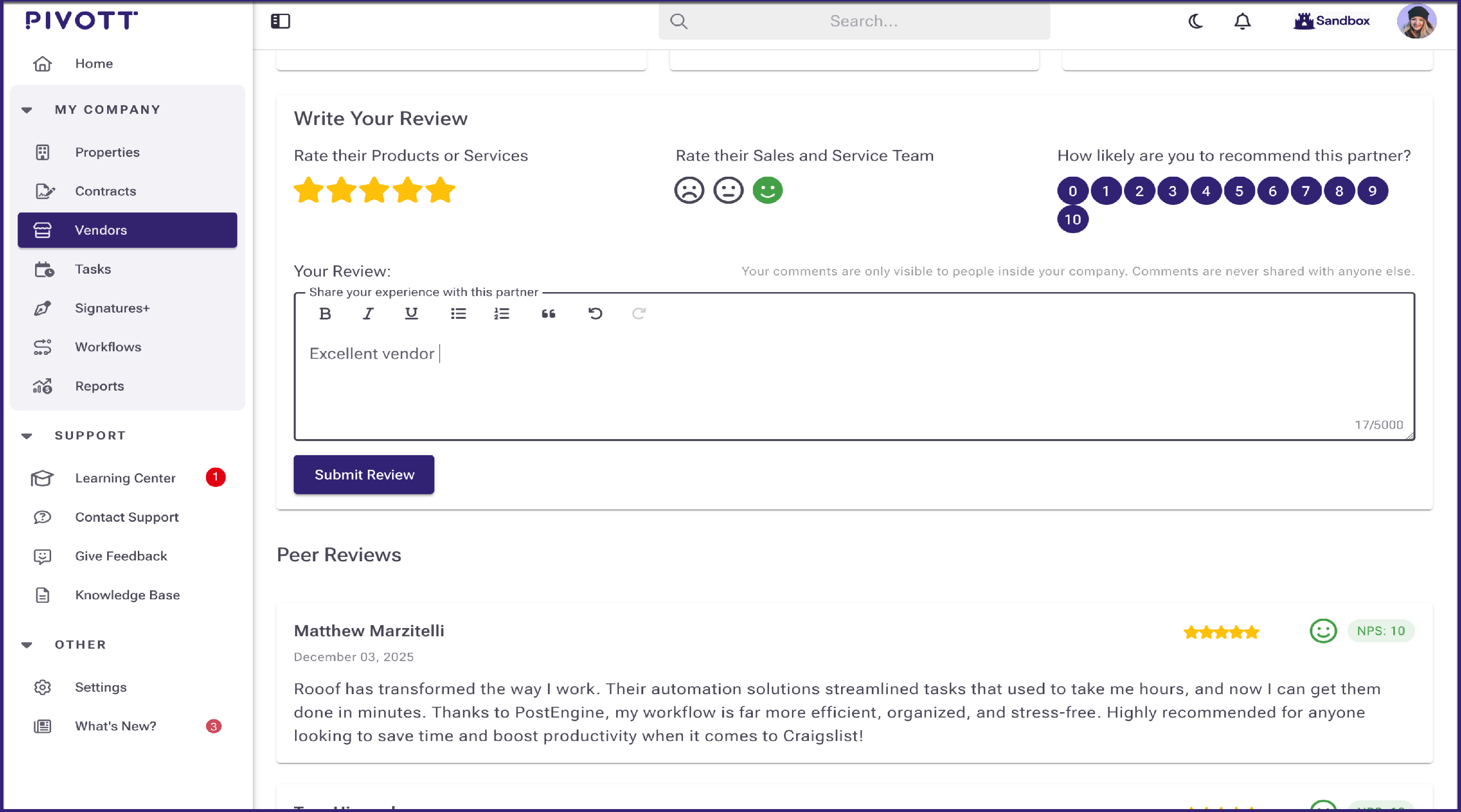
- You can rate the Vendor by selecting the available icons.
- You can also write reviews, which other Pivott users in your company can view.
- These reviews will not be shared publicly.
Troubleshooting
Can I delete a vendor?
Vendors cannot be deleted through the Pivott interface. If you have questions or need assistance, please get in touch with us at help@pivott.io or reach out to your Pivott account manager.