
Locked Contracts
In this section
Locked Contracts is an Enterprise feature. Speak to your account manager about enabling it for your organization.
ℹ️ What are locked contracts?
Locked Contracts let admin users mark individual contracts as view-only, protecting them from accidental edits by other users.
A locked contract is fully visible to everyone on your team — it appears in searches, contract lists, and on property profiles — but only admins can make changes to it.
This is useful for centrally managed contracts, like national vendor agreements or MSAs, that are owned by a specific team and should not be modified by property-level staff.
Note: Locked Contracts are different from Restricted Contracts. Restricted contracts are hidden from non-admin users entirely. Locked contracts are visible to everyone, but protected from edits.
A contract cannot be both Locked and Restricted at the same time. If a contract is already restricted, the Locked option will be unavailable, and vice versa.
🔒 How can I tell a contract is locked?
Locked contracts display a Locked badge on the contract card and at the top of the contract profile. The badge is visible to all users.
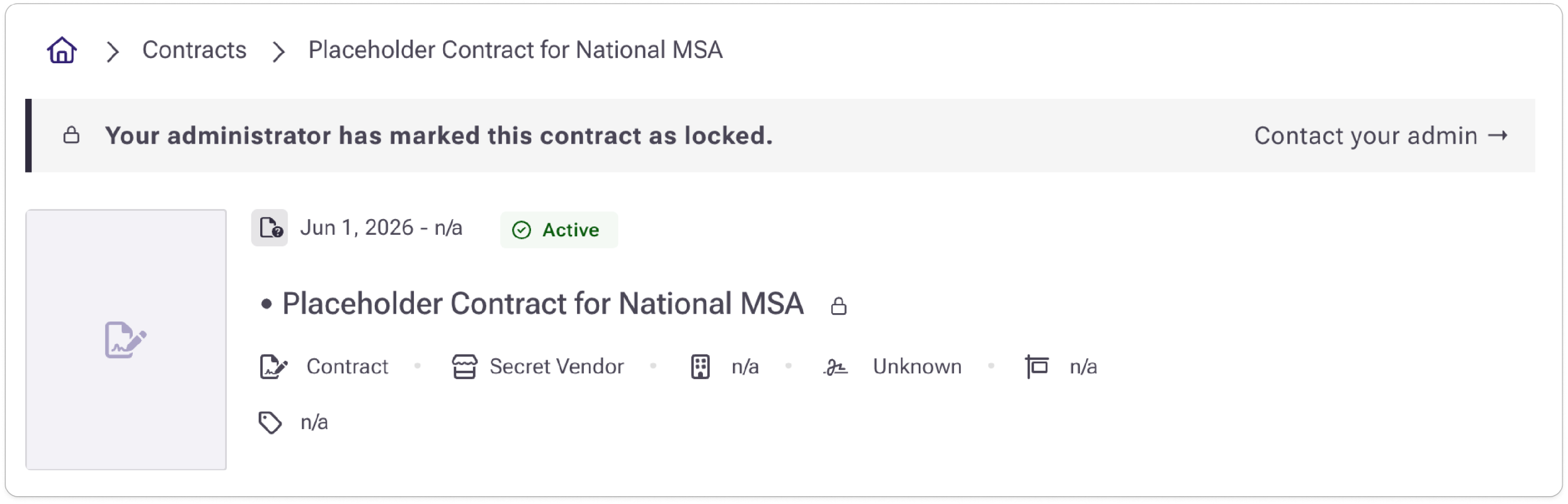
If you are an editor or viewer, you will also see a banner at the top of the contract profile:
"Your administrator has marked this contract as locked. Contact your admin →"
The Contact your admin link takes you to the admin user list in your organization's settings.
☑️ What you can and cannot do
🟢 When a contract is locked, editors and viewers can still:
- View the contract profile and all of its details
- Search for and find the contract in contract lists and universal search
- Download the contract file
- Add the contract to Expected Contracts categories on a property
- Create and complete tasks linked to the contract
- Receive renewal reminders and email notifications for the contract
🔴 The following actions are not available on a locked contract:
- Editing any contract field (name, dates, vendor, contract type, spend value, notes, or custom fields)
- Adding or removing properties associated with the contract
- Uploading or replacing the contract file
- Archiving or deleting the contract
- Batch editing a selection that includes a locked contract
If you need to make a change to a locked contract, contact your admin.
Head to Settings > Administrators to see contact information.
🔐 Admins: Locking & unlocking contracts
Locking & unlocking a contract
See Contract Access Controls for a step-by-step guide.
Locking multiple contracts at once
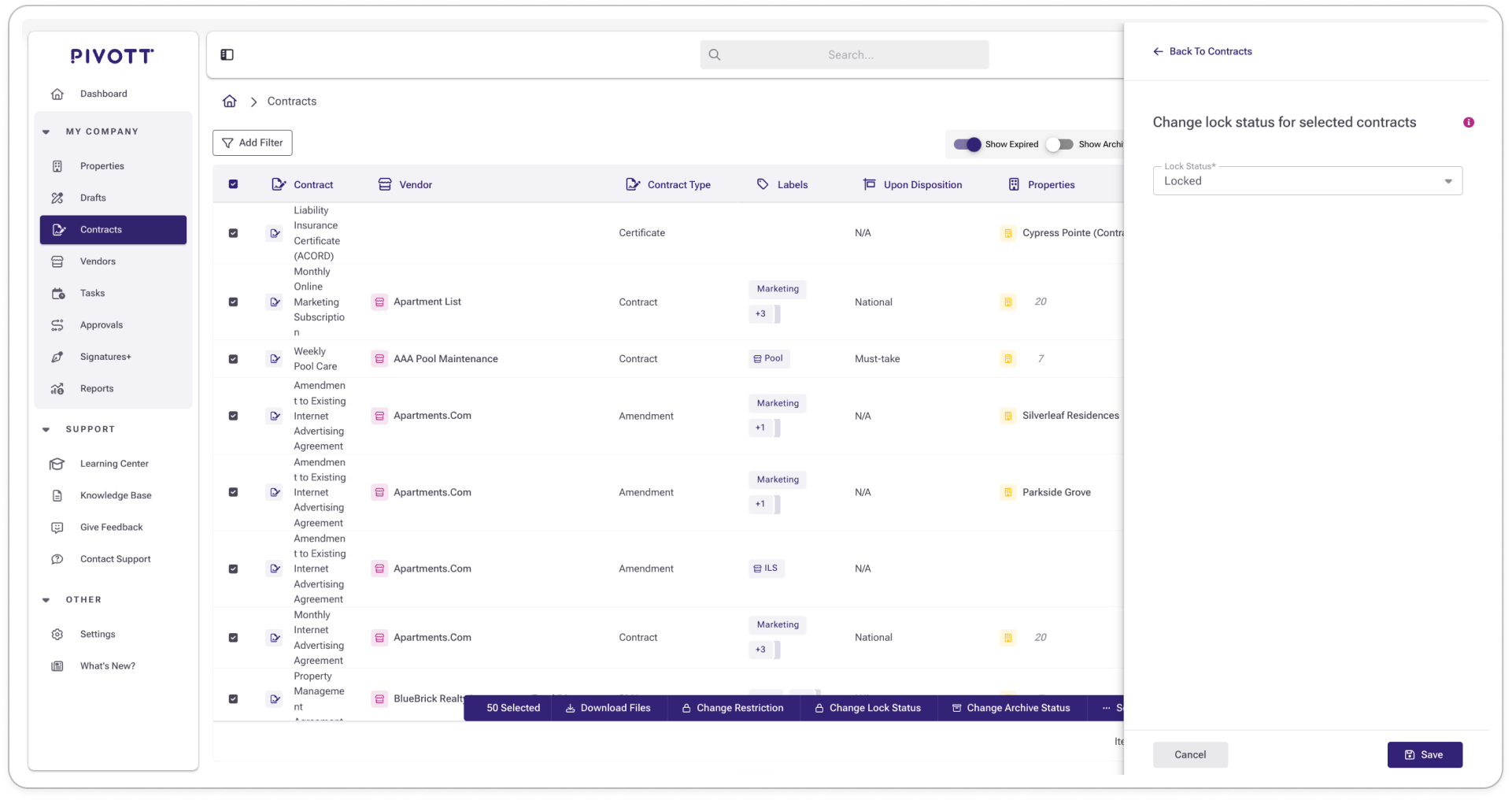
You can lock or unlock multiple contracts at a time using bulk actions on any contract list that supports them. Select the contracts you want to update, open the bulk actions menu, and choose Lock or Unlock.
Finding locked contracts
You can filter for locked contracts from any contract list using the Locked filter. This makes it easy to audit which contracts are currently protected across your portfolio.